
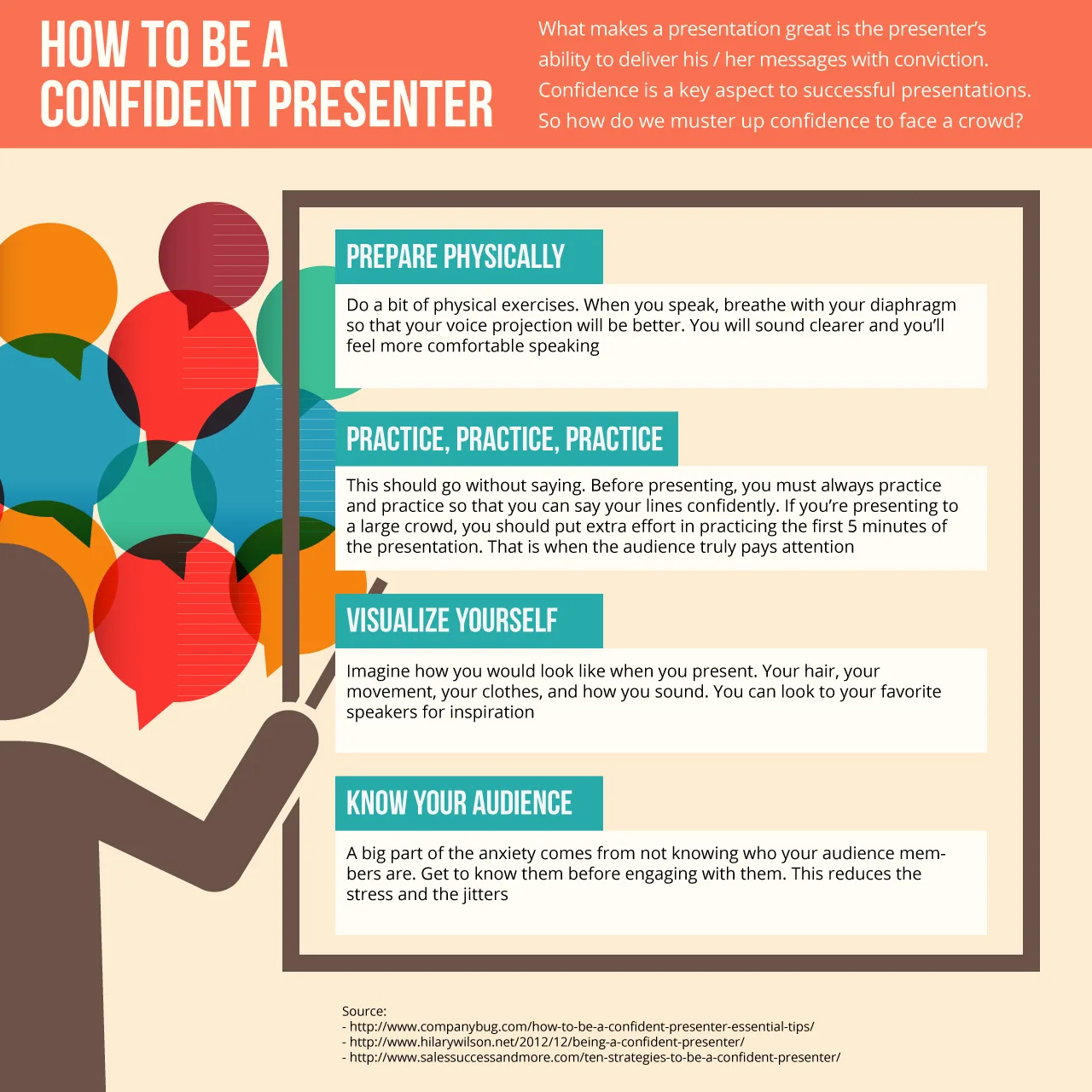
The ability to deliver a clear, engaging presentation is one of the most career-accelerating skills a professional can develop. Yet for many people, standing in front of an audience, whether five colleagues in a conference room or five hundred attendees at a conference, triggers a level of anxiety that no other professional task produces.
This guide is designed specifically for beginners who want a practical, start-to-finish framework for preparing, designing, and delivering presentations that communicate effectively. No motivational platitudes about imagining the audience in their underwear.
Instead, this is a tactical manual covering preparation systems, slide design principles, delivery techniques, technology management, and recovery strategies for when things go wrong. Every recommendation here is grounded in what actually works in real professional environments.
Why Presentation Skills Matter for Your Career
Before diving into techniques, understanding why presentation skills deserve your focused attention provides motivation for the practice ahead.
Presentation ability is consistently cited by hiring managers and executives as one of the most valuable skills they look for in candidates for promotion. Professionals who can articulate ideas clearly and persuasively in front of groups gain visibility, credibility, and influence disproportionate to their tenure or technical expertise.
In many organizations, the person who presents the work gets more credit than the person who did the work. Whether or not that is fair, it is reality, and developing presentation skills ensures that your contributions receive the recognition they deserve.
Beyond career advancement, strong presenters contribute more effectively to their organizations. They secure buy-in for projects faster, communicate complex information more efficiently, represent their teams better in cross-functional settings, and inspire action in ways that emails and documents cannot.
The Preparation Phase - Where Great Presentations Are Made
The single most common mistake beginners make is spending too much time on slides and too little time on preparation. A polished slide deck cannot rescue a poorly prepared presenter, but a well-prepared presenter can deliver effectively with minimal slides.
Step 1 - Define Your Purpose and Audience
Every presentation answers two questions: what do you want the audience to know, and what do you want them to do? If you cannot answer these questions in one clear sentence each, you are not ready to start building slides.
The Purpose Statement Formula: "By the end of this presentation, the audience will understand [key message] and will [desired action]."
Examples:
- "By the end of this presentation, the leadership team will understand that our current onboarding process loses 30 percent of new hires in the first 90 days, and will approve the revised onboarding program and its budget."
- "By the end of this presentation, the client will understand the three proposed solutions for their inventory management challenges and will select one for the pilot phase."
Audience Analysis Checklist:
- What does this audience already know about the topic?
- What is their attitude toward the topic (supportive, skeptical, neutral, hostile)?
- What decisions can they make based on this presentation?
- What questions or objections are they likely to raise?
- What is the cultural and professional context (formal corporate, casual startup, academic, international)?
- What is their technical level regarding the subject matter?
Step 2 - Structure Your Content
Structure is the skeleton that holds a presentation together. Without it, even interesting content feels rambling and difficult to follow. Several proven structures work for professional presentations.
The Problem-Solution-Benefit Structure:
- Describe the problem the audience cares about
- Present your solution with evidence
- Explain the specific benefits of adopting the solution
- Call to action
This structure works for persuasive presentations, project proposals, and sales pitches.
The Situation-Complication-Resolution Structure:
- Describe the current situation
- Identify the complication or challenge
- Present the resolution
- Outline next steps
This works well for status updates, strategic recommendations, and change management presentations.
The What-So What-Now What Structure:
- What: Present the data, findings, or information
- So what: Explain why it matters to this specific audience
- Now what: Describe the recommended actions
This structure is effective for data presentations, research findings, and analytical reports.
Step 3 - Apply the 10-20-30 Rule
Guy Kawasaki's 10-20-30 rule provides a useful starting framework: 10 slides, 20 minutes, minimum 30-point font. While not every presentation fits neatly into these parameters, the underlying principles are universally valuable:
- Fewer slides force focus: Every slide must earn its place. If you cannot explain why a slide is necessary, remove it.
- Time limits respect the audience: Audiences have finite attention. Respecting their time by delivering your message efficiently is a form of professional courtesy.
- Large font forces simplicity: When your font must be at least 30 points, you cannot fit walls of text on a slide. This forces you to simplify your message to its essential points.
Step 4 - Create Your Outline Before Your Slides
Write a text outline of your presentation before opening PowerPoint or Google Slides. The outline should include:
- The opening: How will you capture attention in the first 30 seconds?
- Key points: Three to five main ideas, each with supporting evidence
- Transitions: How does each point connect to the next?
- The closing: What is the final message you want to leave with the audience?
- The call to action: What specifically do you want the audience to do next?
Working in text first prevents the common trap of building slides that look good but lack logical flow. It also makes it easier to identify gaps in your argument and unnecessary tangents before you have invested time in visual design.
Slide Design - Less Is More
Slides are visual aids. They exist to support your message, not to replace you as the presenter. The moment an audience is reading your slides instead of listening to you, the slides have failed their purpose.
The Golden Rules of Slide Design
One idea per slide: Each slide should communicate a single concept. If you find yourself saying "and also on this slide," you need two slides.
Minimize text: Aim for no more than six words per line and no more than six lines per slide. Ideally, use even less. The audience should be able to glance at a slide and grasp its message in three seconds or less.
Use visuals strategically: Charts, graphs, photographs, and diagrams communicate certain types of information more effectively than words. Use them when they genuinely clarify your point, not as decoration.
Consistent design: Use a single font family (two fonts maximum), a consistent color palette, and uniform layout across slides. Inconsistent design distracts from content and looks unprofessional.
High contrast: Ensure text is easily readable against its background. Dark text on light backgrounds works for well-lit rooms. Light text on dark backgrounds works for dimmer environments. Avoid low-contrast combinations like yellow on white or dark blue on black.
No clip art: Stock imagery should be high quality, relevant, and used sparingly. Generic clip art and cheesy stock photos undermine credibility.
Slide Types Every Beginner Should Know
Title slide: Your presentation title, your name, and your role or organization. Keep it clean and simple.
Agenda slide: Outline the three to five topics you will cover. This sets expectations and helps the audience follow your structure.
Content slides: The workhorses of your deck. Each contains one key idea supported by minimal text, a relevant visual, or a combination.
Data slides: Charts and graphs that present quantitative information. Always include a clear title that states the takeaway (not just the topic). "Revenue grew 23% year-over-year" is better than "Revenue Data."
Quote slides: A single impactful quote that supports your point, displayed prominently with attribution.
Transition slides: Simple slides with a single word, phrase, or question that signal a shift to a new section. These give the audience a mental break and help them follow the structure.
Summary slide: A recap of key points near the end. This reinforces retention.
Call-to-action slide: The final slide before Q&A that clearly states what you want the audience to do next.
Common Slide Design Mistakes
- Reading slides verbatim: If you are going to read the slides word for word, send them as a document and cancel the meeting
- Animations and transitions overload: Subtle transitions are fine. Spinning text, bouncing graphics, and sound effects are not
- Inconsistent formatting: Random font sizes, misaligned elements, and inconsistent bullet styles look sloppy
- Too much data on one chart: If a chart requires explanation longer than 30 seconds, simplify the chart or split it into multiple visuals
- Using slides as notes: Slides face the audience. Notes face you. Never combine them
Delivery Techniques - How You Say It Matters
Content and slides are the foundation. Delivery is what brings the presentation to life. Even strong content falls flat with poor delivery, while skilled delivery can elevate average content.
Voice Control
Pace: Nervous presenters speak too fast. Deliberately slow your pace below what feels natural. A presentation pace of 130 to 150 words per minute is ideal for comprehension. Normal conversation runs at about 150 to 170 words per minute, so slowing down will feel unusual but sound right to the audience.
Volume: Project your voice to the back of the room. If you are unsure about volume, ask someone seated in the last row before you begin. In virtual presentations, speak at a conversational volume but slightly more deliberately than normal.
Pitch variation: Monotone delivery kills engagement. Vary your pitch naturally by emphasizing key words, raising pitch slightly when asking questions, and lowering pitch when delivering important statements. This is not theatrical performance. It is the natural speech variation that engaging speakers use instinctively.
Pauses: Pauses are the most underused tool in a presenter's arsenal. A deliberate pause after a key point gives the audience time to absorb the information. A pause before answering a question signals that you are thinking carefully. A pause to replace filler words ("um," "uh," "like," "so") makes you sound more confident and polished. Practice pausing for two full seconds at transition points.
Body Language
Stance: Stand with feet shoulder-width apart, weight balanced evenly. Avoid rocking, swaying, or shifting weight from foot to foot. Plant yourself and move with intention.
Movement: Deliberate movement engages the audience. Walk toward the audience when making an important point. Move to different areas of the stage when transitioning between topics. Avoid pacing, which communicates anxiety.
Gestures: Use natural hand gestures to emphasize points. Keep gestures above the waist and below the shoulders. Avoid repetitive gestures (the "chopping" motion is common among nervous presenters) and self-soothing gestures like touching your face, crossing arms, or gripping the podium.
Eye contact: In in-person settings, make eye contact with individuals across all sections of the audience. Hold each person's gaze for three to five seconds before moving to someone else. Avoid the "lighthouse" effect of sweeping your gaze back and forth without actually connecting with anyone.
Managing Nerves
Presentation anxiety is normal. Even experienced speakers feel it. The goal is not to eliminate nerves but to manage them so they do not interfere with delivery.
Physical management techniques:
- Controlled breathing: Inhale for four counts, hold for four counts, exhale for six counts. Repeat five times in the minutes before you present. This activates the parasympathetic nervous system and reduces cortisol production.
- Power posing: Spend two minutes in an expansive posture (arms wide, chest open) in a private space before presenting. Research on this is debated, but many presenters report that it increases subjective confidence.
- Progressive muscle relaxation: Tense and release major muscle groups, starting from your feet and working upward. This releases the physical tension that anxiety creates.
- Physical exertion: A brisk walk, stair climbing, or wall push-ups 15 minutes before presenting burns off excess adrenaline.
Cognitive management techniques:
- Reframe anxiety as excitement: The physiological responses are nearly identical. Telling yourself "I am excited" rather than "I am nervous" can genuinely shift the experience.
- Focus on the audience: Anxiety is self-focused. Shifting your attention to serving the audience reduces self-consciousness.
- Prepare your opening thoroughly: The first 60 seconds are when anxiety peaks. If you have your opening memorized so well that you can deliver it on autopilot, your nervous system will settle before you need to think creatively.
- Visualization: Mentally rehearse the presentation going well. Visualize yourself speaking clearly, the audience engaged, and the conclusion landing effectively.
Handling the Q&A Session
For many beginners, Q&A is more anxiety-inducing than the presentation itself because it introduces unpredictability. A structured approach removes most of that anxiety.
Before Q&A Begins
- Prepare for likely questions during your preparation phase. For each major point, ask yourself: what would a skeptic ask about this?
- Prepare answers for the five most likely questions and practice delivering them concisely.
- Decide in advance whether you want questions during the presentation or at the end. Communicate this clearly at the beginning.
During Q&A
Listen to the full question: Do not start formulating your answer while the question is still being asked. Listen completely, then pause for one to two seconds before responding.
Repeat or paraphrase the question: This ensures everyone heard it, confirms your understanding, and gives you additional thinking time. "Great question. You are asking whether the implementation timeline accounts for the integration testing phase. Let me address that."
Answer concisely: A good Q&A answer is 30 to 60 seconds. Longer answers lose the audience and eat into available time for other questions.
Handle questions you cannot answer: Use the three-step approach: acknowledge, commit, bridge. "That is an important question, and I want to give you accurate data rather than speculate. I will research that and follow up by Friday. What I can tell you now is..."
Handle hostile questions: Stay calm and respond to the substance, not the tone. "I appreciate the directness of the question. Here is how I see it..." Avoid getting defensive or matching the hostile energy.
Handle off-topic questions: Acknowledge the question and redirect. "That is a valuable topic that deserves its own conversation. I would be happy to discuss it with you after the session. For now, let me stay focused on [topic] so we respect everyone's time."
Closing After Q&A
Never let Q&A be the last thing the audience experiences. After the final question, deliver a brief closing statement that reinforces your key message and call to action. "Thank you for those thoughtful questions. To bring us back to the core message: [restate key point and call to action]."
Virtual Presentations - Adapting for the Screen
Virtual presentations introduce challenges that in-person settings do not. Screen fatigue, limited nonverbal feedback, technical complications, and home environment distractions all require specific adaptation.
Technical Setup
Camera position: Place your camera at eye level. Looking down into a laptop camera creates an unflattering angle and breaks the illusion of eye contact. Stack your laptop on books or use an external webcam mounted on your monitor.
Lighting: Position your primary light source in front of you, not behind you. A window behind you creates a silhouette. A ring light or desk lamp positioned behind your camera provides even, flattering illumination.
Audio: Use a dedicated microphone or quality headset rather than your laptop's built-in microphone. Audio quality is the single most impactful element of virtual presentation production value.
Background: A clean, uncluttered background is ideal. Virtual backgrounds are acceptable if your hardware supports them smoothly. A virtual background that flickers or cuts off parts of your body is more distracting than a messy room.
Internet connection: Use a wired ethernet connection if possible. Close bandwidth-heavy applications. Have a mobile hotspot available as backup.
Delivery Adjustments for Virtual
- Look at the camera, not the screen: This is counterintuitive but essential for creating the sense of eye contact with your audience
- Increase vocal energy by 20 percent: Screen delivery flattens energy. What feels slightly over-the-top to you will come across as normal to your audience
- Gesture within the camera frame: Keep gestures visible by positioning yourself so that the camera captures you from mid-chest up
- Use names: Address participants by name more frequently than you would in person. This creates connection and signals that you are aware of who is in the room
- Build in interaction: Every five to seven minutes, include a question, poll, or activity that requires audience participation. This prevents passive consumption and maintains engagement
Sharing Slides Virtually
- Share only the presentation window, not your entire screen. Sharing your whole screen risks exposing notifications, personal bookmarks, or open applications
- Use presenter view so you can see your notes while the audience sees only the slides
- Keep a copy of your slides accessible to participants in case they lose the screen share or join late
- Have a backup plan for screen sharing failure: be prepared to describe your slides verbally or send the deck and walk participants through it
Practice Methods That Actually Work
Knowing your content is not the same as being prepared to deliver it. Practice bridges the gap.
The Progression Method
Stage 1 - Read-through: Read your presentation out loud from your notes or script. Time it. Identify sections that feel clunky or run too long.
Stage 2 - Keyword delivery: Reduce your notes to keywords only. Deliver the presentation from keywords, forcing yourself to speak naturally rather than read.
Stage 3 - Slide-only delivery: Deliver using only your slides as cues, with no other notes. This is the level of preparation you need for confident delivery.
Stage 4 - Distraction delivery: Practice while introducing mild distractions, such as a TV playing in the background or a family member asking you questions. This builds resilience for unexpected disruptions during the actual presentation.
Record and Review
Record yourself delivering the presentation and watch the recording critically. Focus on:
- Pace: Are you rushing?
- Filler words: Count the "ums" and "uhs"
- Eye contact: Are you looking at your notes or the camera/audience?
- Body language: Are there distracting habits you did not notice in the moment?
- Timing: Does each section fit within its allocated time?
Recording yourself is uncomfortable but provides feedback that no other practice method can match.
Practice with a Test Audience
Deliver your presentation to a colleague, friend, or family member and ask for specific feedback:
- Was the main message clear?
- Did any section lose their attention?
- Were there points that needed more explanation or evidence?
- Did the presentation feel too long, too short, or about right?
- What questions did they have at the end?
Day-of Checklist
The morning and hours before your presentation are not the time for major revisions. They are the time for logistics and mental preparation.
Technical Checklist
- Laptop fully charged and charger accessible
- Presentation file saved locally (not only in the cloud)
- Backup copy on USB drive or secondary device
- Projector or screen tested and working
- Audio system tested if using microphone
- Remote clicker tested with fresh batteries
- Video conferencing platform tested if presenting virtually
- Screen sharing tested
- Water bottle at the podium or desk
Content Checklist
- Opening three sentences memorized
- Key transitions practiced
- Closing statement and call to action rehearsed
- Anticipated Q&A questions reviewed
- Timing confirmed: total time and time per section
Personal Checklist
- Appropriate attire selected and comfortable
- Arrival 15 to 30 minutes early for in-person presentations
- Phone on silent
- Breathing exercises completed
- Positive visualization done
- Test audience feedback incorporated
Common Mistakes and How to Avoid Them
Mistake 1 - Starting with an Apology
"I'm not great at presentations" or "I didn't have much time to prepare" sets a negative expectation. Start with your strongest opening, not a disclaimer.
Mistake 2 - Information Overload
Beginners try to include everything they know about the topic. The audience cannot absorb it all. Select the three to five most important points and deliver them clearly rather than racing through twenty points superficially.
Mistake 3 - Reading from Slides
If you are reading your slides word for word, the slides have become the presentation and you have become the projector. Slides should contain keywords and visuals. You provide the narrative.
Mistake 4 - Ignoring Time Limits
Running over time is disrespectful to the audience and signals poor preparation. Practice with a timer. Build in a buffer by preparing content for 80 percent of your allocated time.
Mistake 5 - Skipping the Call to Action
A presentation without a clear call to action wastes the momentum you have built. Always end with a specific request: approve the budget, schedule a follow-up, try the new process, visit the website.
Mistake 6 - Neglecting the Opening
The first 30 seconds determine whether the audience decides to pay attention. Start with a compelling statistic, a provocative question, a brief relevant story, or a bold statement. Do not start with "Today I'm going to talk about..."
Recovering from Mistakes During a Presentation
Mistakes will happen. Technology will fail. You will lose your place. A slide will be wrong. The differentiating factor is not whether mistakes happen but how you handle them.
Lost Your Place
Pause. Take a breath. Glance at your notes or the current slide. Say, "Let me make sure I cover this point clearly" and continue. The audience will barely notice a brief pause. They will absolutely notice panic.
Technology Failure
Have a backup plan. If slides fail, you should know your content well enough to present without them. If the projector dies, describe what the audience would have seen. If video conferencing drops, have a dial-in number available. The key is preparation, not panic.
Said Something Wrong
Correct yourself simply and move on. "Let me correct that. The actual figure is 23 percent, not 32 percent." Audiences respect transparency and accuracy more than the illusion of perfection.
Forgot a Section
If you realize you skipped a section, incorporate it at the next natural transition point. "Before I move on, I want to circle back to a point I want to make sure we cover." If you only realize after the presentation, mention it during Q&A or in a follow-up email.
Audience Is Disengaged
If you notice glazed eyes, phone checking, or sidebar conversations, change something immediately. Ask a question. Tell a brief relevant anecdote. Move to a different part of the room. Change the energy by shifting from lecture mode to interactive mode.
Presentation Types and How to Approach Each
Different presentation contexts require different approaches. Understanding the expectations and dynamics of each type helps you prepare appropriately.
The Informational Briefing
Purpose: Deliver facts, data, or status updates to an audience that needs to make decisions based on your information.
Key principles: Prioritize clarity over engagement. Structure information logically, lead with the most important points, and provide context for any data presented. Use the "newspaper inverted pyramid" approach: if the audience had to leave after two minutes, would they have the most critical information? Anticipate questions by providing context for any data that might seem surprising or contradictory.
Common mistake: Burying the lead. If the project is behind schedule, say so in the first minute rather than building to it over fifteen slides. Decision-makers respect directness and lose trust in presenters who seem to be softening bad news.
The Persuasive Pitch
Purpose: Convince the audience to approve a budget, adopt a strategy, choose your product, or support a proposal.
Key principles: Open with the audience's problem, not your solution. Demonstrate that you understand their pain points, challenges, or goals before presenting your proposal. Use evidence that the audience finds credible (customer data for executives, technical benchmarks for engineers, case studies for risk-averse stakeholders). End with a specific, concrete ask rather than a vague conclusion.
Common mistake: Focusing on features rather than benefits. The audience does not care what your solution does. They care what it does for them. Every capability should be linked to a specific audience need or pain point.
The Training or Workshop
Purpose: Transfer knowledge or skills to an audience that needs to apply what they learn.
Key principles: Adults learn by doing, not by watching. Structure the session around activities and practice rather than lecture. Use the 10-minute rule: no more than 10 minutes of instruction without an interactive element. Provide reference materials that participants can consult after the session, since retention from presentations alone is limited.
Common mistake: Trying to cover too much material. A training session where participants deeply understand and practice three concepts is more valuable than one where they are superficially exposed to fifteen concepts.
The Executive Update
Purpose: Provide senior leadership with a concise overview of progress, risks, and decisions needed.
Key principles: Executives have limited time and attention bandwidth. Get to the point immediately. Use the "What, so what, now what" structure. Lead with recommendations rather than building up to them. Prepare detailed backup slides for questions but do not present them unless asked. Respect time limits ruthlessly. An executive update that runs over time signals poor preparation and poor judgment.
Common mistake: Providing too much detail. Executives delegate execution. They need enough information to make decisions, not enough to do the work themselves.
Tools and Software Tips
PowerPoint Best Practices
- Use the Slide Master: Set your fonts, colors, and layouts in the Slide Master so every slide is automatically consistent
- Align objects: Use the Align tool (Format > Align) rather than eyeballing element placement. Misaligned elements are one of the most common design mistakes
- Use high-quality images: Avoid stretched or pixelated images. Use sites that provide professional-quality photography
- Limit animation: If you use animation, restrict it to "Appear" and "Fade." Complex animations distract and add nothing
- Compress images: Large image files make presentations slow to load and difficult to email. Use PowerPoint's Compress Pictures feature to reduce file size without visible quality loss
- Save as PDF for sharing: When sending slides to others, export as PDF to ensure formatting is preserved regardless of their software version
Google Slides Best Practices
- Use the Explore feature: Google Slides' Explore panel suggests layouts and designs based on your content
- Link to live data: If presenting data that may change before presentation time, link to Google Sheets rather than copying static data
- Set up speaker notes: Use the speaker notes section for your talking points. Access them during presentation using the presenter view
- Check offline availability: If presenting in a location with uncertain internet, download the presentation for offline access
- Use the built-in laser pointer: Press "L" during presentation mode to activate a laser pointer, useful for highlighting specific elements on data-heavy slides
Presentation Remote and Tools
A presentation remote (clicker) is one of the best investments a regular presenter can make. It frees you from standing at the computer and allows you to move naturally while advancing slides. Most basic remotes cost under $30 and include forward, back, and laser pointer functions. Charge or replace batteries before every presentation.
Building Long-Term Presentation Skills
Presentation skill is not built in a single preparation cycle. It develops over months and years of deliberate practice and reflection.
Seek opportunities to present: Volunteer for team presentations, lead meeting segments, present at internal knowledge-sharing sessions. Volume of practice is the strongest predictor of improvement.
Study effective presenters: Watch conference talks, TED presentations, and internal speakers you admire. Analyze what they do well rather than just absorbing the content.
Get coaching: If your organization offers presentation skills training, take it. If not, consider external coaching or a local Toastmasters group, which provides structured practice in a supportive environment.
Reflect after every presentation: Within 24 hours, write down what went well, what you would do differently, and what surprised you. This reflection accelerates learning.
Collect feedback systematically: Ask trusted colleagues for specific, constructive feedback after presentations. Generic feedback ("It was good") is useless. Specific feedback ("Your opening was strong but you lost me during the data section") drives improvement.
Build a presentation template library: Over time, develop reusable templates for your most common presentation types. This reduces preparation time for routine presentations and ensures consistent quality.
Study storytelling: The most memorable presentations tell stories. Study how narrative structure (character, conflict, resolution) can frame professional content in ways that are both informative and engaging. Stories activate different brain regions than data alone, creating stronger memory formation and emotional connection.
Every presentation is practice for the next one. The anxiety that beginners feel is not a permanent condition. It is a temporary state that diminishes with experience, preparation, and deliberate skill development. The professionals who present with apparent ease were once beginners who decided that this skill was worth developing and then put in the work.
Presenting to Different Audiences - Adapting Your Approach
One of the hallmarks of an advanced presenter is the ability to adapt the same core content for different audiences. A project update presented to a technical team looks and sounds different from the same update presented to a board of directors.
Technical Audiences
Technical audiences want depth, precision, and evidence. They respect presenters who demonstrate mastery of the material and who can engage with detailed questions. With technical audiences, include methodology, data, and specifics. Use accurate terminology. Be prepared for challenging questions that probe the foundations of your analysis. Do not oversimplify. Technical audiences find oversimplification more insulting than excessive complexity.
Executive Audiences
Executives want the headline, the business impact, and the decision they need to make. They do not want the methodology unless they specifically ask for it. With executive audiences, lead with recommendations. Use business metrics (revenue, cost, time-to-market, risk) rather than technical metrics. Keep the core presentation short and have detailed backup slides available for questions.
Mixed Audiences
Mixed audiences containing both technical and non-technical members require the most sophisticated approach. Structure your presentation in layers: lead with the business context and key messages for the general audience, then offer to go deeper into technical specifics for those who are interested.
Use analogies to make technical concepts accessible without patronizing the experts in the room. A useful technique is to say, "For those familiar with the technical details, you will recognize this as a standard microservices architecture. For everyone else, think of it as breaking one large system into many small, independent components that can be updated separately."
International and Cross-Cultural Audiences
Presenting to audiences from different cultural backgrounds requires awareness of communication style preferences. Some cultures expect formal, structured presentations with clear hierarchical respect. Others prefer conversational, interactive formats. Research the cultural norms of your audience.
Use clear, jargon-free language when presenting to non-native English speakers. Speak slightly more slowly than normal without being patronizing. Use visuals to support verbal content, since images communicate across language barriers more effectively than words alone.
Frequently Asked Questions
How many slides should a presentation have?
The ideal slide count depends on your time slot and content density, but a reliable starting framework is the 10-20-30 rule popularized by Guy Kawasaki: 10 slides, 20 minutes, minimum 30-point font. For a standard 30-minute business presentation, aim for 12 to 18 slides. For a 60-minute workshop or training session, 25 to 35 slides is reasonable if many are visual rather than text-heavy.
The critical principle is that every slide must earn its place. If a slide does not advance your argument, illustrate a key point, or provide essential data, remove it. Audiences remember presentations with fewer, more impactful slides far better than those packed with dense information. When in doubt, cut slides and talk through the content verbally instead.
What is the best way to handle nerves before a presentation?
Presentation anxiety is a physiological response, so the most effective strategies address the body first. Begin with controlled breathing: inhale for four counts, hold for four counts, exhale for six counts, and repeat five times.
This activates the parasympathetic nervous system and reduces the cortisol spike that causes shaky hands and a quivering voice. Physical movement before presenting, such as a brisk walk or wall push-ups in a private space, burns off excess adrenaline.
Mentally, reframe anxiety as excitement, since the physiological responses are nearly identical.
Arrive early to familiarize yourself with the room and test all technology. Finally, memorize your first three sentences thoroughly so you can deliver them on autopilot while your nervous system settles, which typically happens within the first 60 seconds.
How should I handle questions I cannot answer during Q&A?
Admitting you do not know something is far more professional than guessing or deflecting obviously. Use this three-step framework: acknowledge the question, commit to following up, and bridge to what you do know. For example: ‘That is an excellent question, and I want to give you accurate information rather than speculate. I will research that and send you the answer by end of day Friday.
What I can tell you now is…’ This approach builds credibility because audiences respect honesty and diligence over performed omniscience. Keep a notepad visible during Q&A and visibly write down questions you commit to following up on. This signals that you take the question seriously. Always follow through on your promise within the stated timeframe.